Take full control
of your viewport.
1080p, 720p, og:image, or any custom size.
This extension resizes the viewport — not the window — to the size you want in one click,
so you can capture the screen
or record it (Pro) right away.
Resize
Snap the viewport to the size you want in one go.
Resize / Presets
Your target size,
just one click away.
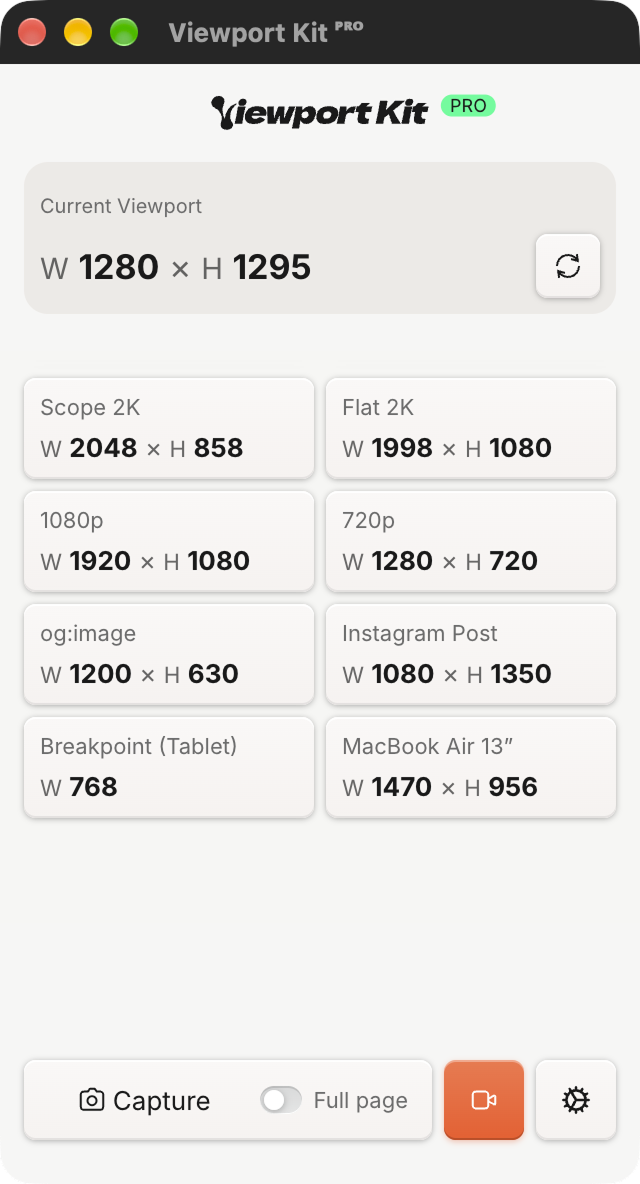
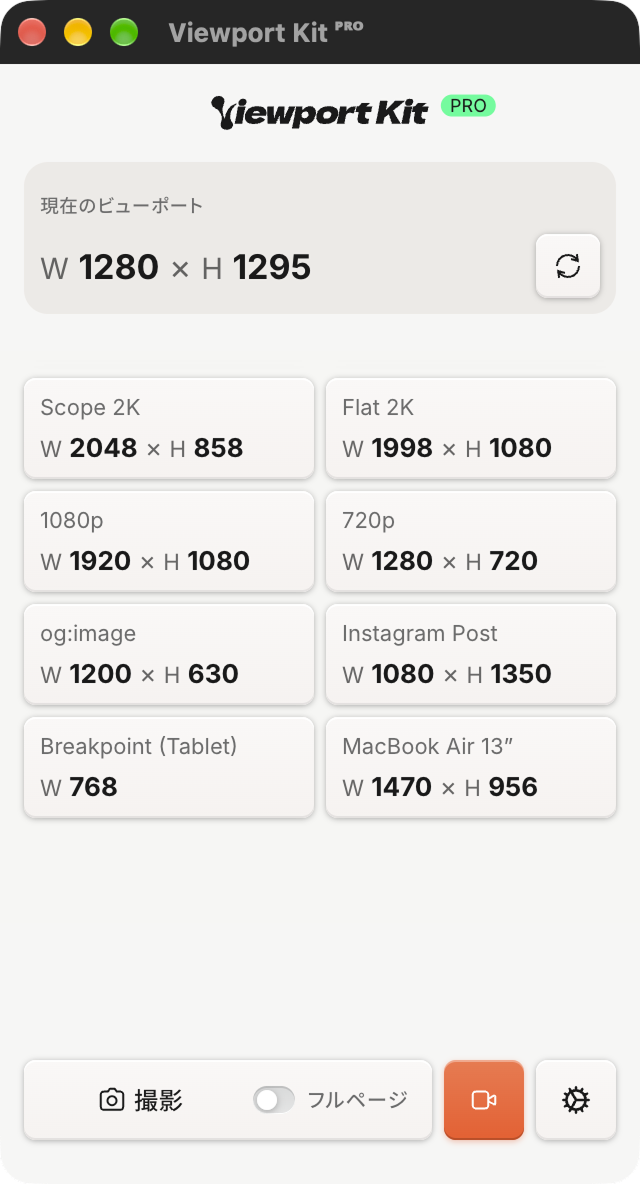
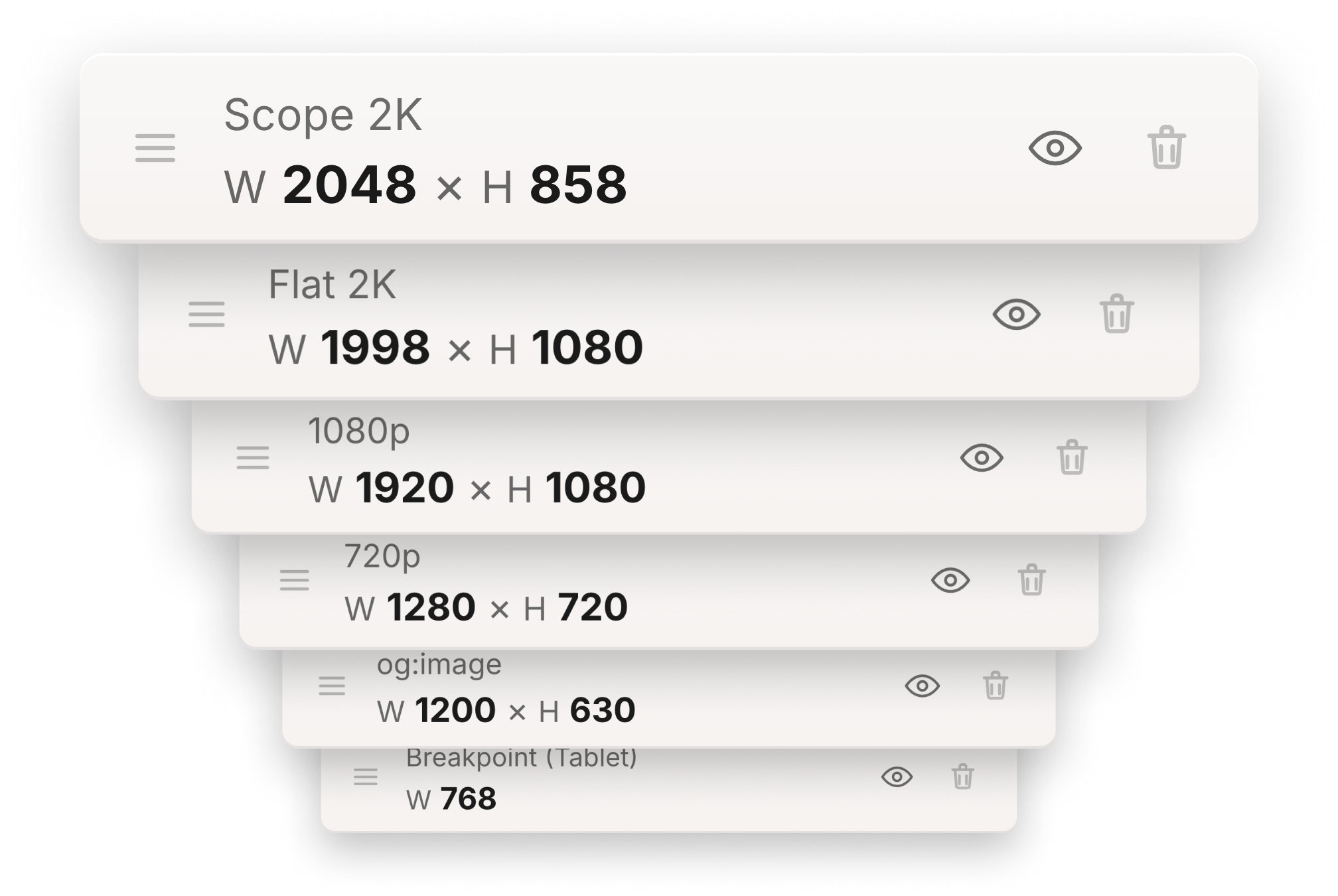
Standard sizes like 1080p, 720p, and og:image are built in. Register the sizes you use often as custom presets, and from then on you can return to them with a single click.
-
Resize the viewport (not the window) to a preset or a registered custom size* in one click
* Up to 4 on Free, unlimited on Pro
-
Flip resize swaps width and height in one click
-
Automatically clamps sizes that exceed your display
Capture
Capture exactly what you see as a still image.
Static Capture
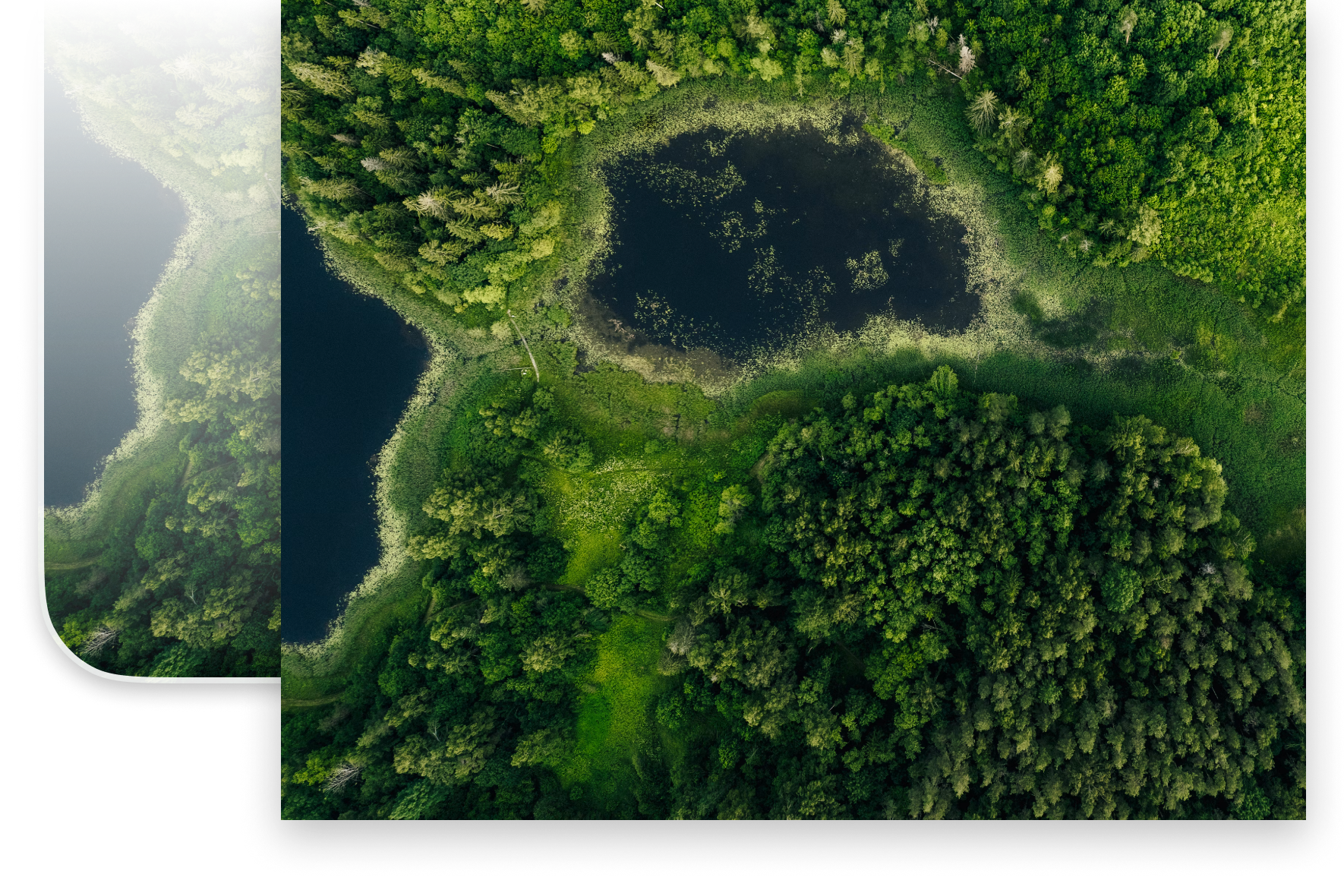
Your screen, exactly as it is.
No rounded window corners or margins sneak into the shot — and no address bar or tabs either. All that gets saved is the web content itself, cropped to a perfect rectangle.
-
Available on Free with no limits
-
Turn off “Save at Retina resolution” to save at CSS pixel size
Full Page Capture Pro
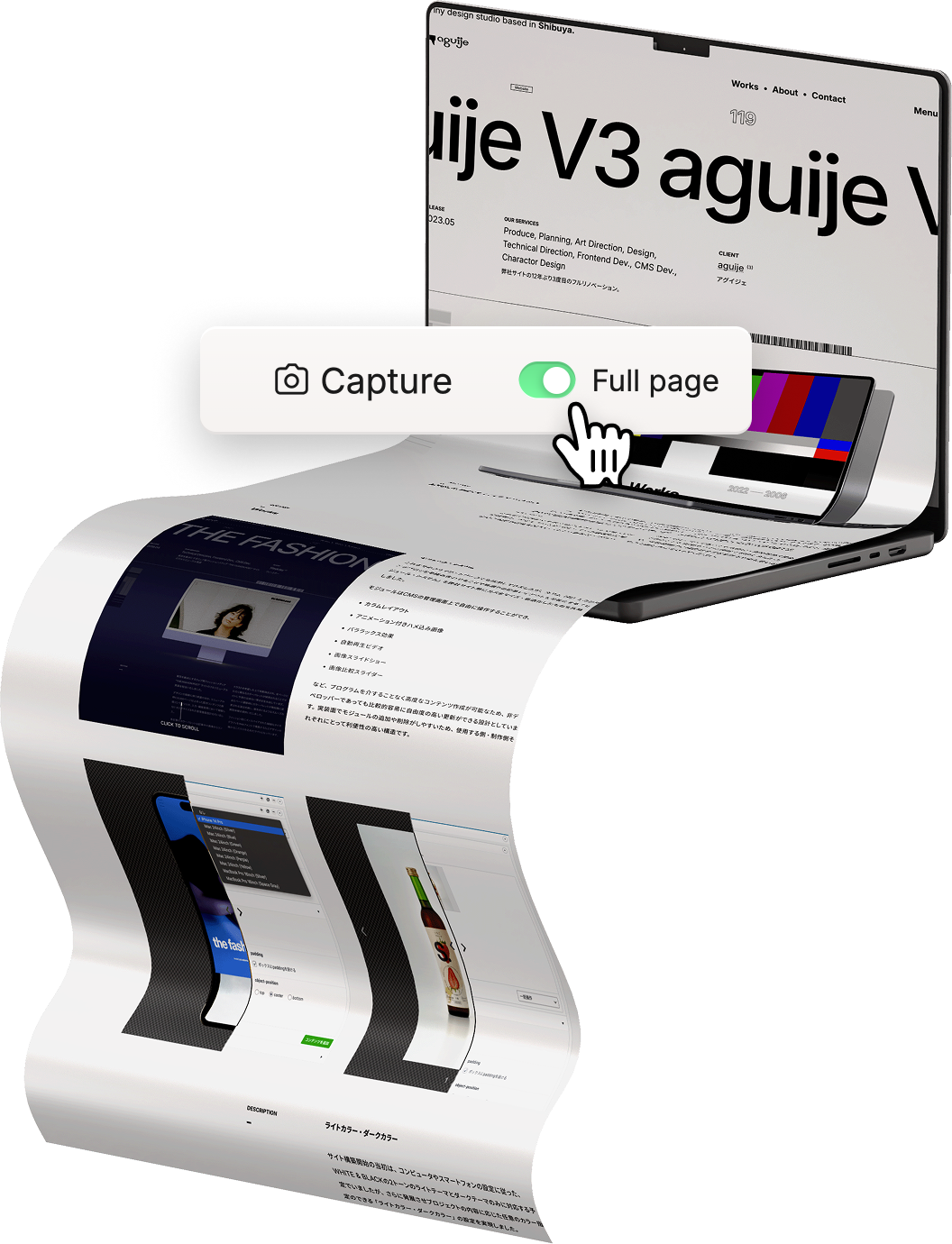
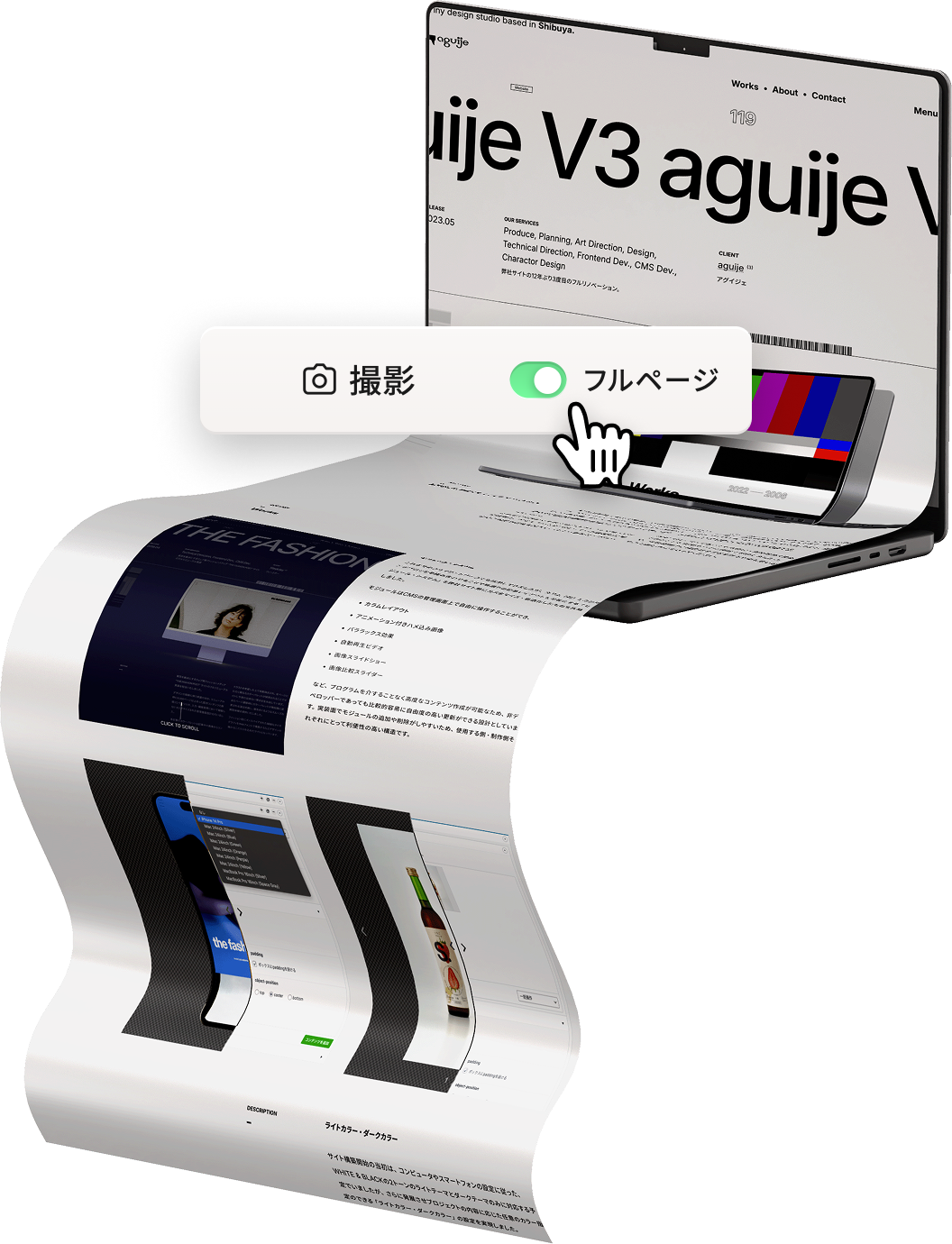
The whole page, in one image.
Automatically scrolls the target tab from top to bottom while capturing, then stitches the shots into a single tall PNG.
-
Captures while auto-scrolling from top to bottom and merges everything into one PNG
-
Prevents sticky headers and footers from repeating in the image
-
Handles pages up to 80 tiles long (each tile is the screen height minus the fixed header and footer areas), with Retina resolution support
Recording
Every motion, on video.
Manual Recording Pro
What you do, captured on video.
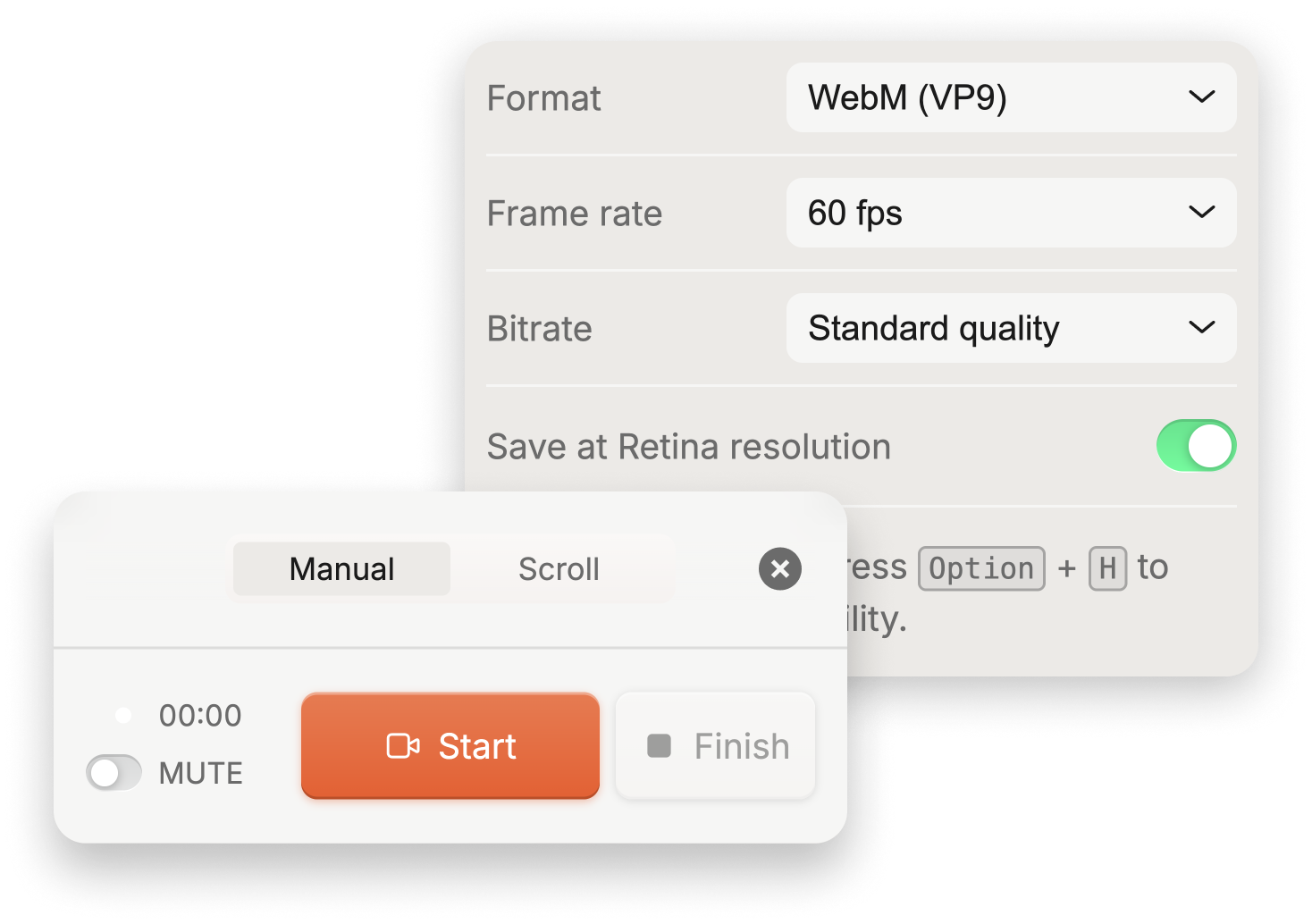
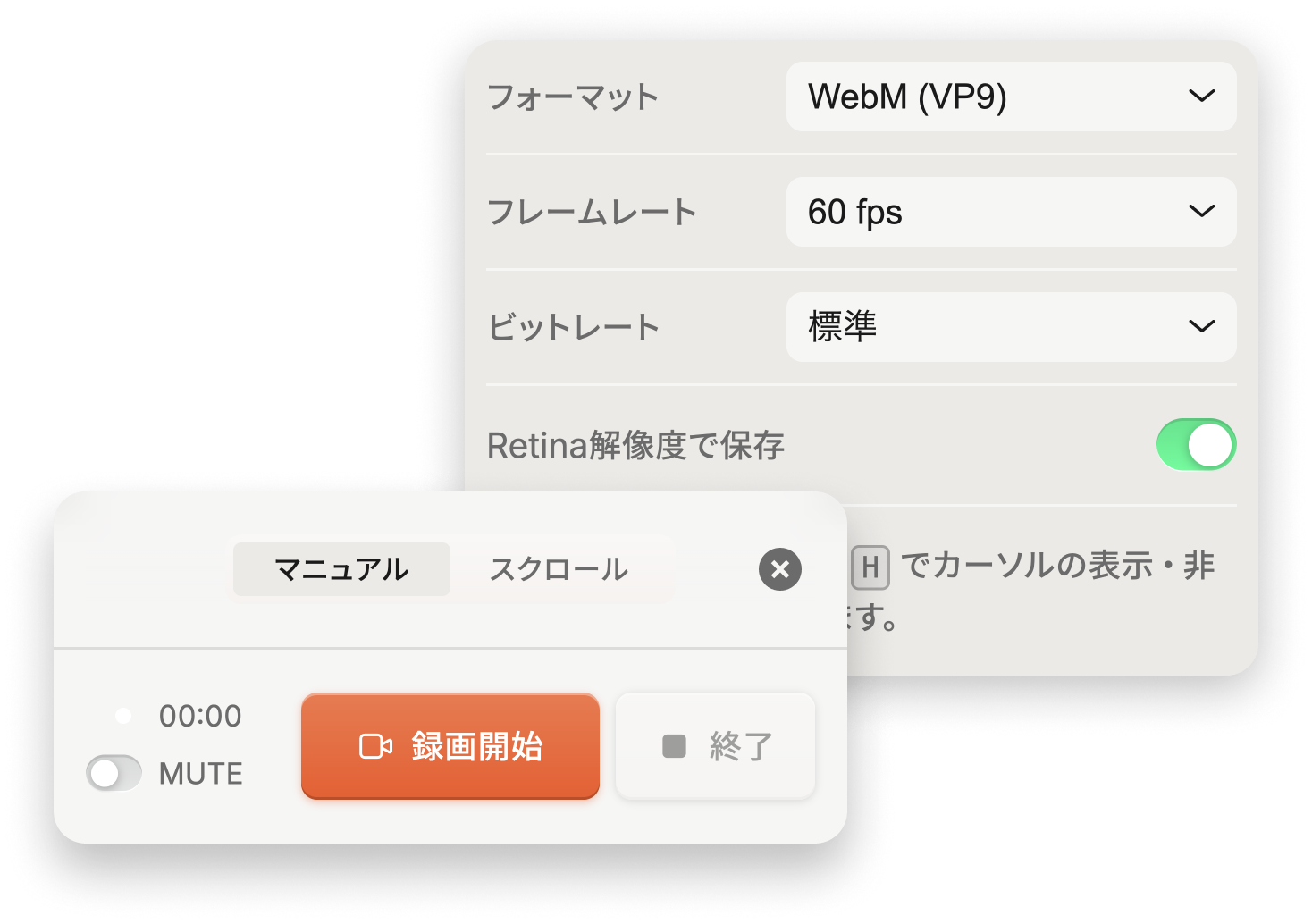
Record your interactions within the viewport with a single button.
-
Two formats — highly compressed, high-quality WebM (VP9) and widely compatible MP4 (H.264) — with Retina resolution support and up to 60 minutes of continuous recording
-
Selectable frame rate and bitrate
-
Records audio by default (switch to silent anytime with MUTE)
-
Hide and show the cursor with a keyboard shortcut
Option+H(Mac) /Alt+H(Windows)
Scroll Recording Pro
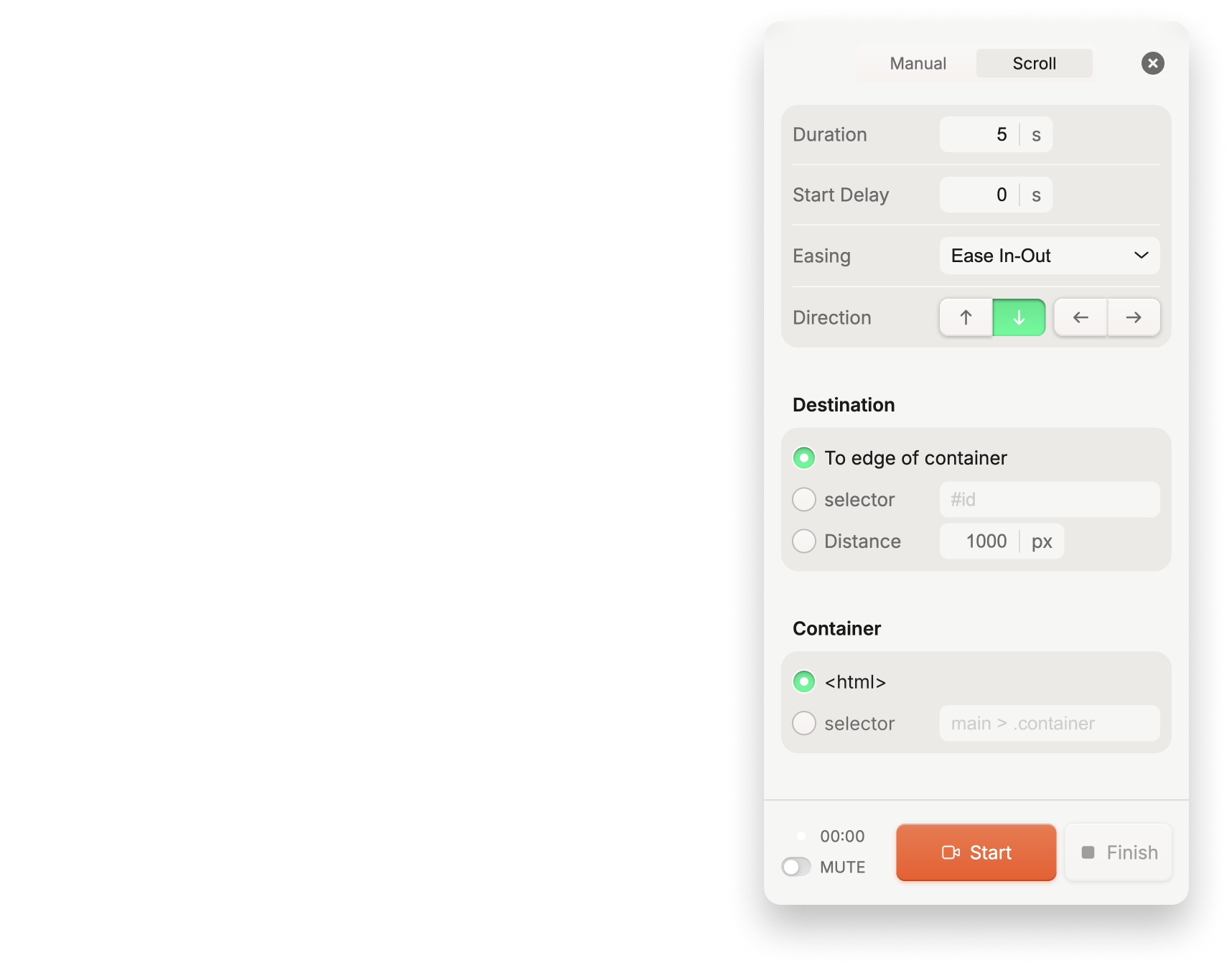
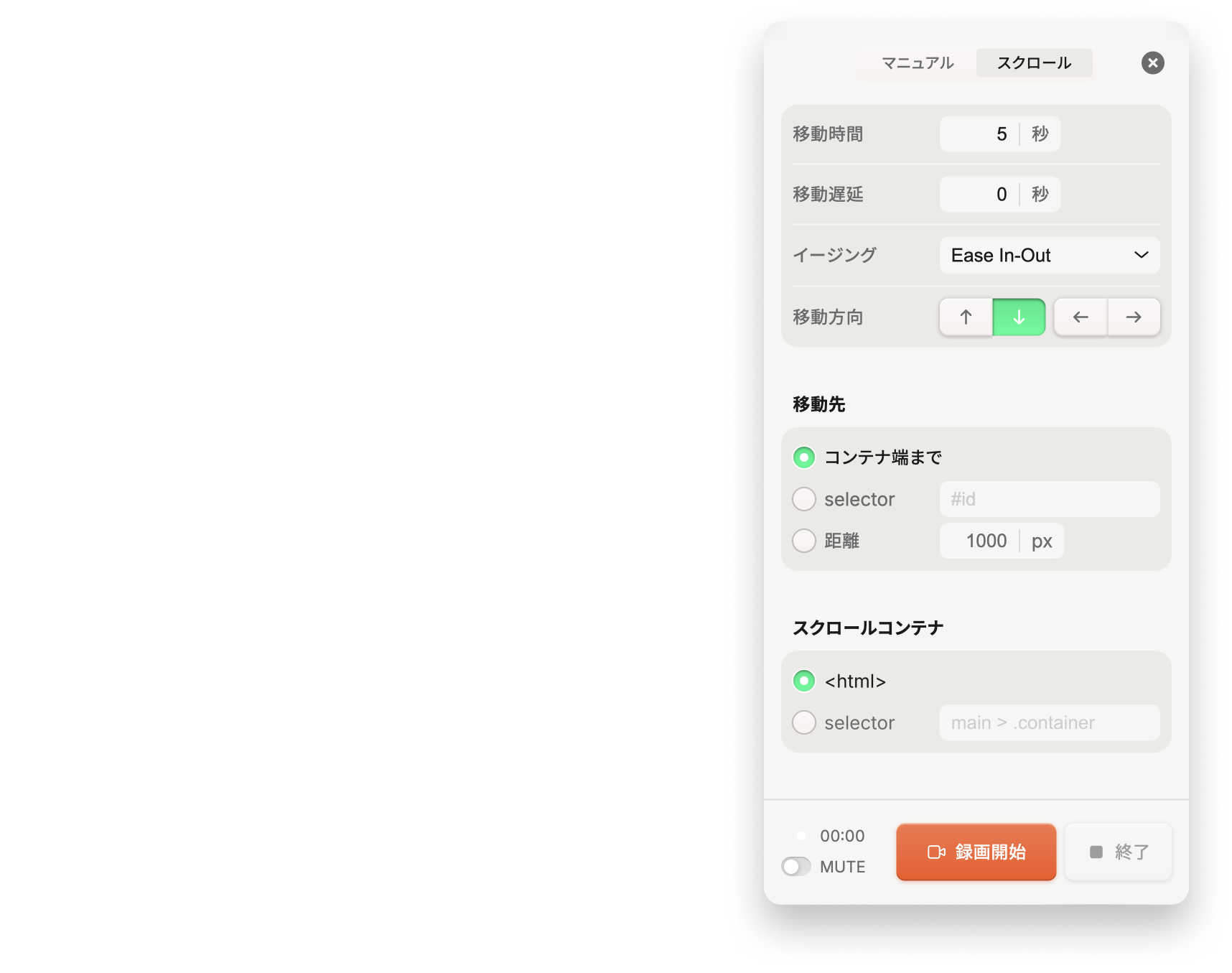
Long pages, recorded from start to finish with auto-scroll.
Auto-scroll to the edge, by a set distance, or to an element selector, and smoothly record the motion of the whole page.
-
Scrolls in all four directions: up, down, left, and right
-
Apply easing to the scroll animation
-
After the scroll stops, change the settings and resume with a new scroll recording
Free / Pro
Go Pro when you need it.
| Free | Pro | |
|---|---|---|
| Custom size presets | Up to 4 | Unlimited |
| Delete default viewport presets | Not included | Included |
| Flip resize (swap width and height) | Included | Included |
| Still capture (Retina toggle) | Included | Included |
| Full page capture | Not included | Included |
| Recording (WebM / MP4, auto-scroll, cursor hiding, and more) | Not included | Included |
FAQ
Frequently Asked Questions
General
Why don’t resizing and capturing work on some pages?
On some pages — such as Chrome’s internal pages starting with chrome:// (Settings, the extensions page, etc.) and the Chrome Web Store — Chrome’s security restrictions don’t allow extensions to access the page. Viewport resizing, capturing, and other features don’t work on these pages.
Please use the extension on regular websites.
Why does “Current Viewport” show a decimal size on Windows?
This happens when Windows’ Settings → Display → Scale is set to a fractional value such as 125%, 175%, or 225%. At these settings, 1px on the page is drawn with 1.25, 1.75, or 2.25 screen pixels, so converting the whole number of screen pixels back to page units can leave a fraction.
(For example, at 175%, a viewport 3361 screen pixels wide is 3361 ÷ 1.75 = 1920.57px in page units. “Current Viewport” shows this actual value as is.)
When resizing with a preset, the extension tells Chrome’s API a window size that includes the browser UI (tabs, address bar, etc.). With a fractional display scale, making the viewport exactly the specified size can require a fractional window size such as 1234.57px. However, Chrome’s API only accepts whole numbers for window sizes, so in those cases the viewport is resized to the closest size that’s possible.
Captures and recordings are saved at the on-screen pixel size when “Save at Retina resolution” is on, and at the viewport size rounded to whole pixels when it’s off (recordings may additionally be rounded to even numbers).
It doesn’t happen when Scale is set to a whole multiple such as 100% or 200%, or on macOS.
What is the version of Google Chrome where you tested it?
Google Chrome 154.0.8037.58 / macOS Golden Gate 27.0
Google Chrome 154.0.8037.58 / Windows 11
Resize
Why is the viewport sometimes resized smaller than the size I specified?
You can’t resize beyond your display’s usable area (the work area). This appears to be because the operating system itself does not allow a browser window to be larger than the visible area of the display, and it can’t be worked around by an extension. If the specified size exceeds the screen, it is automatically adjusted to the largest size that fits.
By default, the aspect ratio of the specified size is preserved when it is adjusted to fit (you can turn this off in the settings).
Capture
Why does full page capture take a while to finish?
Chrome’s screenshot API for extensions can only be called up to twice per second. Full page capture scrolls and captures step by step within this limit, so the longer the page, the longer it takes.
On pages that load more content as you scroll down, like social media feeds, how far does full page capture go?
Full page capture covers the page as long as it was when the capture started. Content that loads during the capture and makes the page longer isn’t included. To capture further, scroll down the page first to load more content, then start the capture.
Why is a captured image sometimes slightly different from the specified size?
The saved image size depends on the “Save at Retina resolution” setting, as described below. The same applies to the width of full page captures.
When it’s on, the image is saved at the on-screen pixel size. On a Retina display on macOS or at a 200% display scale, that’s exactly twice the viewport. But on Windows with a fractional display scale such as 125% or 175%, the viewport multiplied by the scale is rounded to whole pixels when it isn’t a whole number, so the result isn’t always an exact multiple (for example, 1200×630 at 175% becomes 2100×1103).
When it’s off, the image is scaled down to the viewport size. Normally that’s exactly the specified size, but on Windows with a fractional display scale, the viewport can have a fractional size like 1920.57px. In that case, it’s saved at that size rounded to the nearest whole number.
Recording
Why does only the mouse cursor look low-resolution in my recordings?
When you record on a Retina display, the page itself is captured sharply, but the cursor is drawn by the browser’s native functionality, and its resolution can’t be controlled by the extension. Please consider this a known limitation for now.
Why is my recording sometimes saved slightly smaller than the specified size when “Save at Retina resolution” is off?
The saved size of a recording is determined in two steps.
First, the viewport size is rounded to whole pixels. Normally it stays exactly as specified, but on Windows with a fractional display scale such as 125% or 175%, the viewport can have a fractional size like 1920.57px (see “Why does ‘Current Viewport’ show a decimal size on Windows?”). In that case it’s rounded to the nearest whole number.
Next, the browser’s video capture and encoding pipeline requires both dimensions to be even, so if the rounded result is odd, it’s automatically rounded down to the next even number, 1px smaller. For example, a 1080×1295 viewport is saved as 1080×1294. This is a browser-level constraint that occurs regardless of how the extension is implemented.
Can I record with the cursor completely hidden?
Permanently hiding the cursor with CSS would hide it not only in the recording but also on your own screen while you work, so we don’t use that approach.
Instead, you can show or hide the cursor whenever you like during recording with the Option + H (Mac) / Alt + H (Windows) shortcut.
What happens if I switch to another tab while recording?
The control panel is designed to close automatically when you switch away from the target tab, and this applies during recording as well. Your recording isn’t lost, though: it’s treated the same as pressing the “Finish” button, and everything up to that point is saved automatically. To keep recording, click the extension icon again on the target tab and start a new recording.
What happens if I resize the target tab’s window while recording?
The captured video size isn’t expected to change mid-recording, so if the window’s size changes from what it was at the start, the recording automatically finishes and is saved at that point (simply moving the window won’t stop the recording). Please avoid resizing the window while recording.
Will I be asked for microphone permission when recording audio?
No. When recording with audio, what’s captured is the audio output played by the target tab itself — a different mechanism from accessing a physical microphone — so no OS or browser microphone permission dialog appears. You’ll also continue to hear the target tab’s audio through your speakers as usual while recording.
Why does MP4 recording sometimes fail with large custom sizes?
At very large resolutions (around 4200px or more in our testing), both hardware and software encoding may fail, and MP4 recording can’t start. When this happens, an error message is shown — recording never silently continues in a broken state. In that case, try a lower resolution or use the WebM format instead.
Can I always record for the full 60 minutes?
The maximum recording time is 60 minutes, but recorded data is held in your computer’s memory during recording and saved all at once when you finish. Depending on your computer’s available memory and free storage space, recording may end before reaching 60 minutes, or saving may fail.
For longer recordings, close other apps and tabs to free up memory, and make sure you have plenty of free storage space.